When it is time to actually make your products, you will use the Kanban Manufacturing Board & Recipes module. This ensures your inventory ledger stays perfectly synced with reality as you plan batches, monitor requirement shortages, and execute material reductions.
Starting a Batch Job
- Go to Production & Recipes from the left sidebar and ensure the Pipeline Board tab is active.
- Click + Schedule Batch Job in the top right.
- Select the product you are manufacturing and define the Batch Size (e.g., 20 units).
- Add any relevant production notes (e.g., "Customer rush shipping required" or "Optimize layer heights").
Vercos ERP will instantly secure the required stocks for the run and calculate the exact Cost Breakdown.
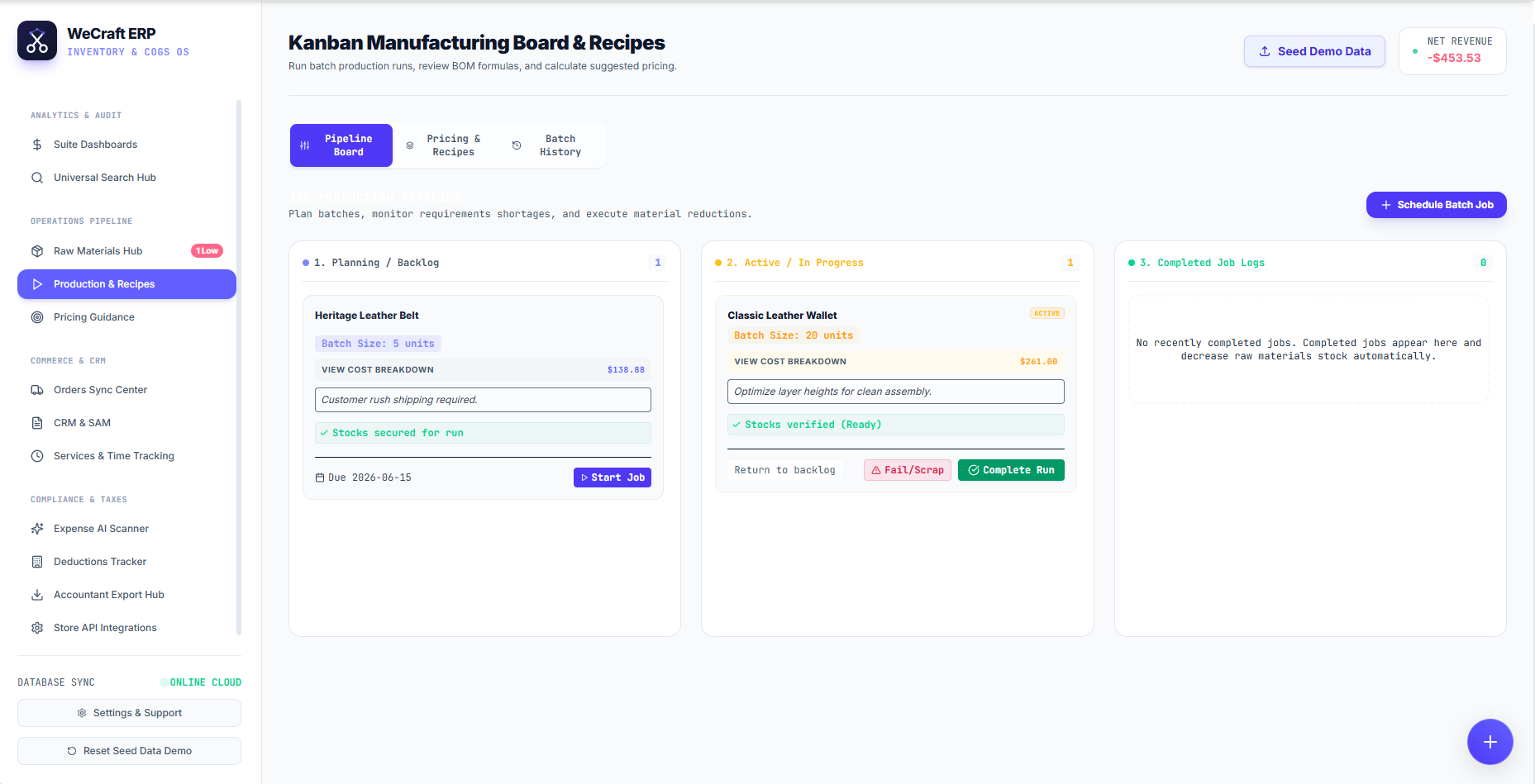
The Job Production Pipeline Workflow
Your job will flow linearly through three stages on the Kanban board:
- Planning / Backlog: Your scheduled jobs sit here while you gather materials. You can review the total Cost Breakdown. When ready, click > Start Job.
- Active / In Progress: The batch is actively being manufactured. If something goes wrong, you can click Fail/Scrap to account for wasted materials. If everything is perfect, click Complete Run.
- Completed Job Logs: Once finished, the job moves to this historical log.
The Magic of "Completion"
The moment you click Complete Run, two things happen simultaneously in the background:
- The exact fractional amounts of raw materials used in the batch are deducted from your Inventories & Warehouses.
- The final manufactured units are automatically added to your finished goods inventory, ready to be synced to Shopify or sold via manual invoice.