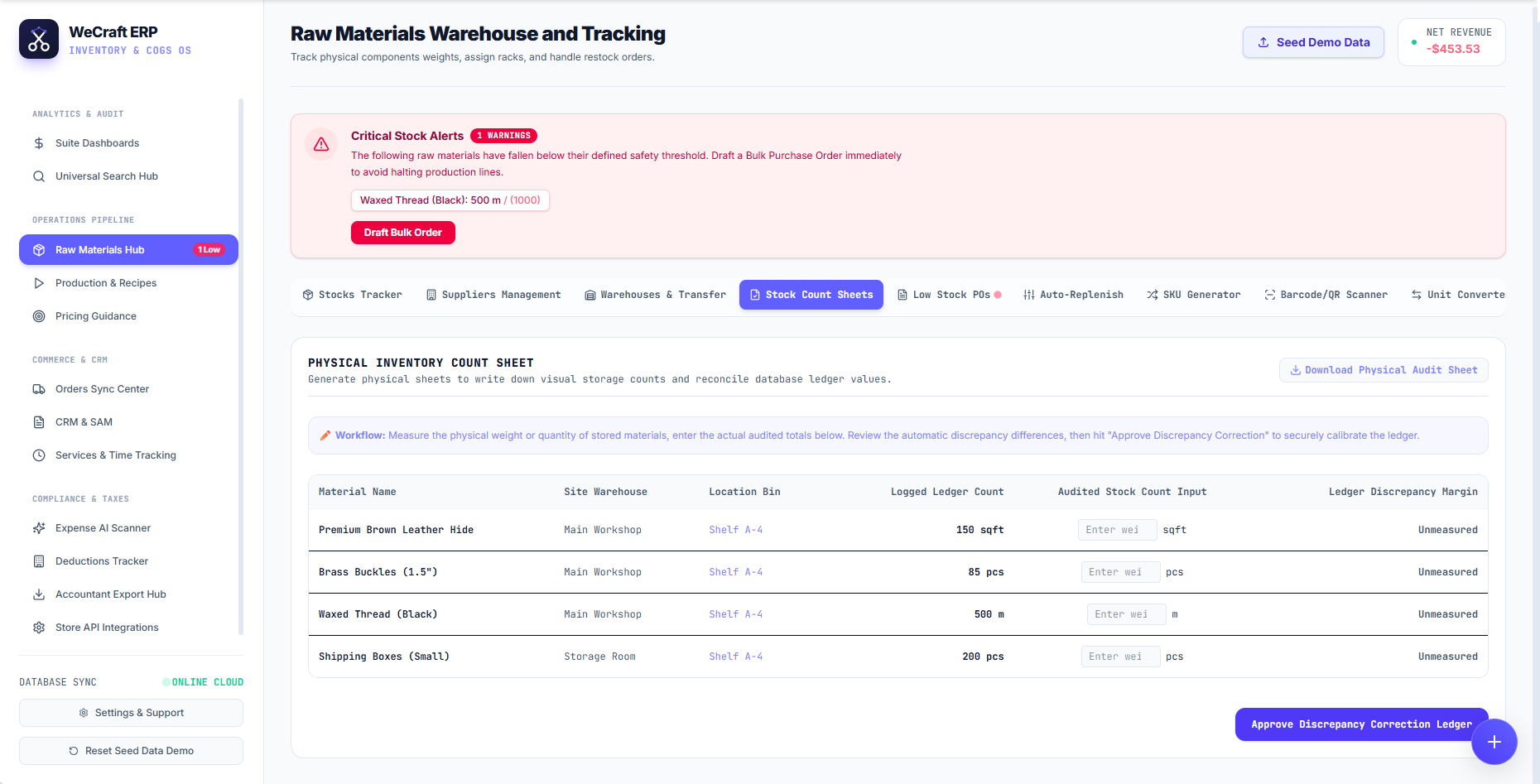
No matter how perfect your digital inventory system is, spills happen, items break, and physical stock can drift from your database records. To maintain perfectly accurate COGS (Cost of Goods Sold), Vercos ERP provides a dedicated auditing system.
The Physical Inventory Count Sheet
To perform a routine audit, navigate to the Inventories & Warehouses and click the Stock Count Sheets tab.
Here you will find your master Physical Inventory Count Sheet, which lists every raw material in your database alongside its assigned warehouse and specific bin location (e.g., Shelf A-4).
Running a Warehouse Audit
- Start by clicking the Download Physical Audit Sheet button in the top right. This generates a clean, printable checklist of your expected inventory.
- Walk through your warehouse or workshop, clipboard in hand, and visually count the materials.
- Return to the dashboard and enter your actual counted numbers into the Audited Stock Count Input column.
- As you type, the system will automatically calculate the Ledger Discrepancy Margin (e.g., if the ledger says you have 150 sqft of Leather Hide, but you only counted 140, it will show a -10 discrepancy).
- Once you have entered all your manual counts, click the blue Approve Discrepancy Correction Ledger button at the bottom right.
Vercos will instantly calibrate your database to match reality, adjusting your total asset values and ensuring your upcoming production batches don't fail due to missing materials!
Under FIFO or LIFO: a shortfall (fewer counted than the ledger expected) depletes cost lots the same way a normal consumption would; an overage (more counted than expected) adds a new lot at the material's current cost, since the real cost of "found" stock can't be known. Under Weighted Average, corrections work exactly as described above.