When your raw materials run low, drafting a Purchase Order (PO) is only half the battle. You also need to track the status of those inbound shipments so your production team knows exactly when they can resume manufacturing.
The Purchase Orders Hub
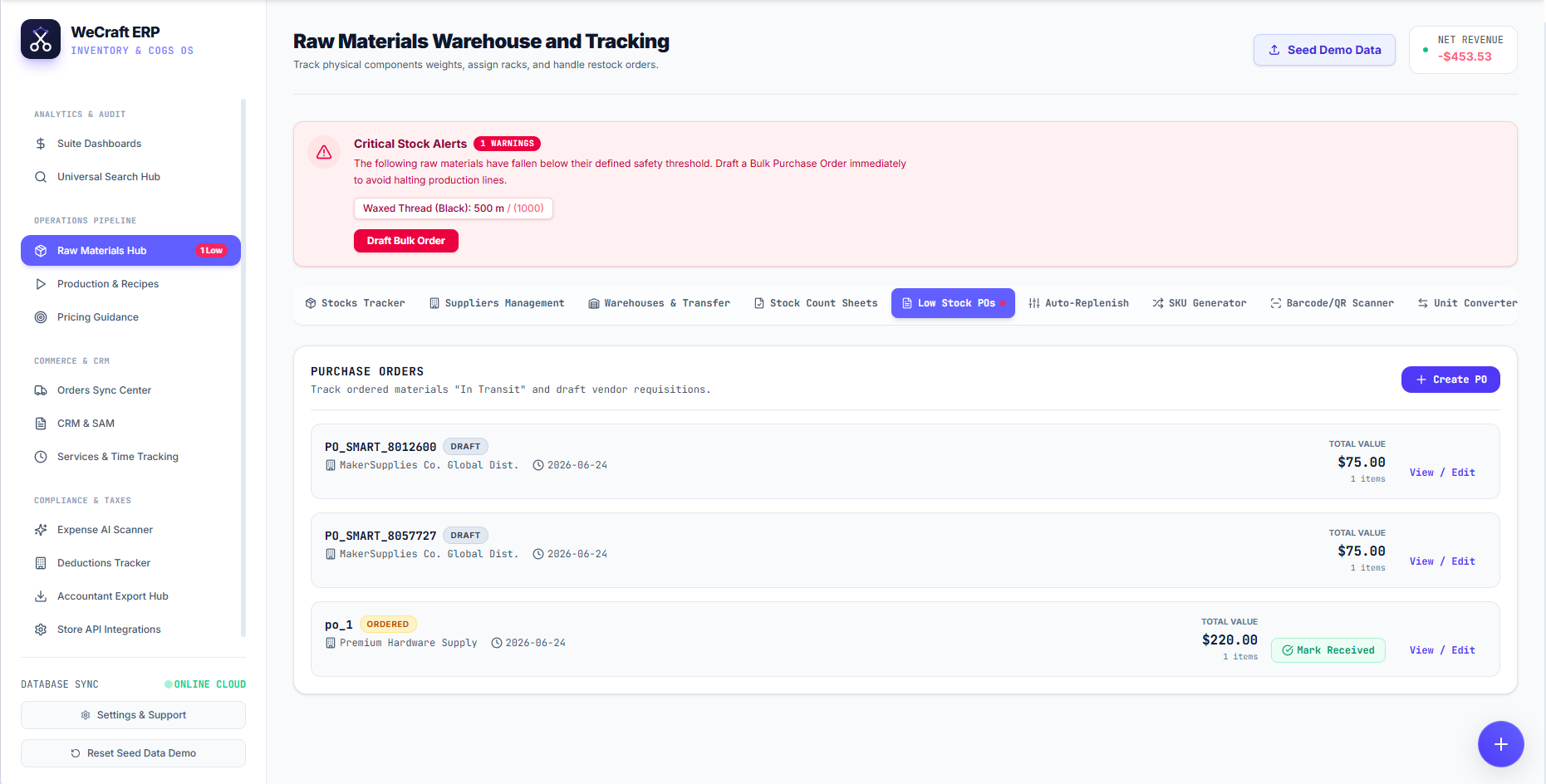
Navigate to the Inventories & Warehouses and click the Low Stock POs tab (look for the red dot indicator showing you have pending alerts!).
Here you can monitor all your inbound inventory. You can click the blue + Create PO button to manually draft a new requisition, or you can manage the automatic drafts generated by your Critical Stock Alerts.
Draft vs. Ordered Status
Each card in your PO ledger displays critical information including the Supplier (e.g., MakerSupplies Co.), the creation date, the Total Value of the order, and the item count.
Pay close attention to the status badges:
- [DRAFT]: These are POs that have been generated (often automatically by the Smart Alerts system) but have not been sent to the vendor yet. You can click View / Edit to finalize the details and formally issue the order.
- [ORDERED]: These are shipments that are actively "In Transit". You have sent the order, and you are waiting for the delivery truck to arrive.
Receiving Physical Inventory
When the delivery truck finally backs up to your loading dock, the workflow is incredibly simple.
Locate the corresponding [ORDERED] card in your ledger (e.g., po_1 from Premium Hardware Supply) and click the green Mark Received button. Vercos ERP will instantly convert the "In Transit" numbers into active, physical inventory in your database, making the raw materials immediately available for your production batches!