Manual data entry is tedious and prone to errors. Vercos ERP's Expense AI Scanner allows you to completely automate the ingestion of supplier receipts and materials bills.
The Invoice Scanner Pipeline
Navigate to Expense AI Scanner under the Compliance & Taxes section of the left sidebar.
At the top of the dashboard, you'll see the Invoice Scanner Pipeline upload area. You can drag and drop raw supplier receipts (PDF, JPEG, or PNG formats up to 15MB).
Once uploaded, our AI will automatically read the document and:
- Extract individual line items.
- Separate unit pricing from taxes.
- Categorize write-offs.
- Automatically map the items to your raw materials inventory.
If you don't have a file to scan, you can always click the Create Manual Input Draft Without File button to enter the data yourself.
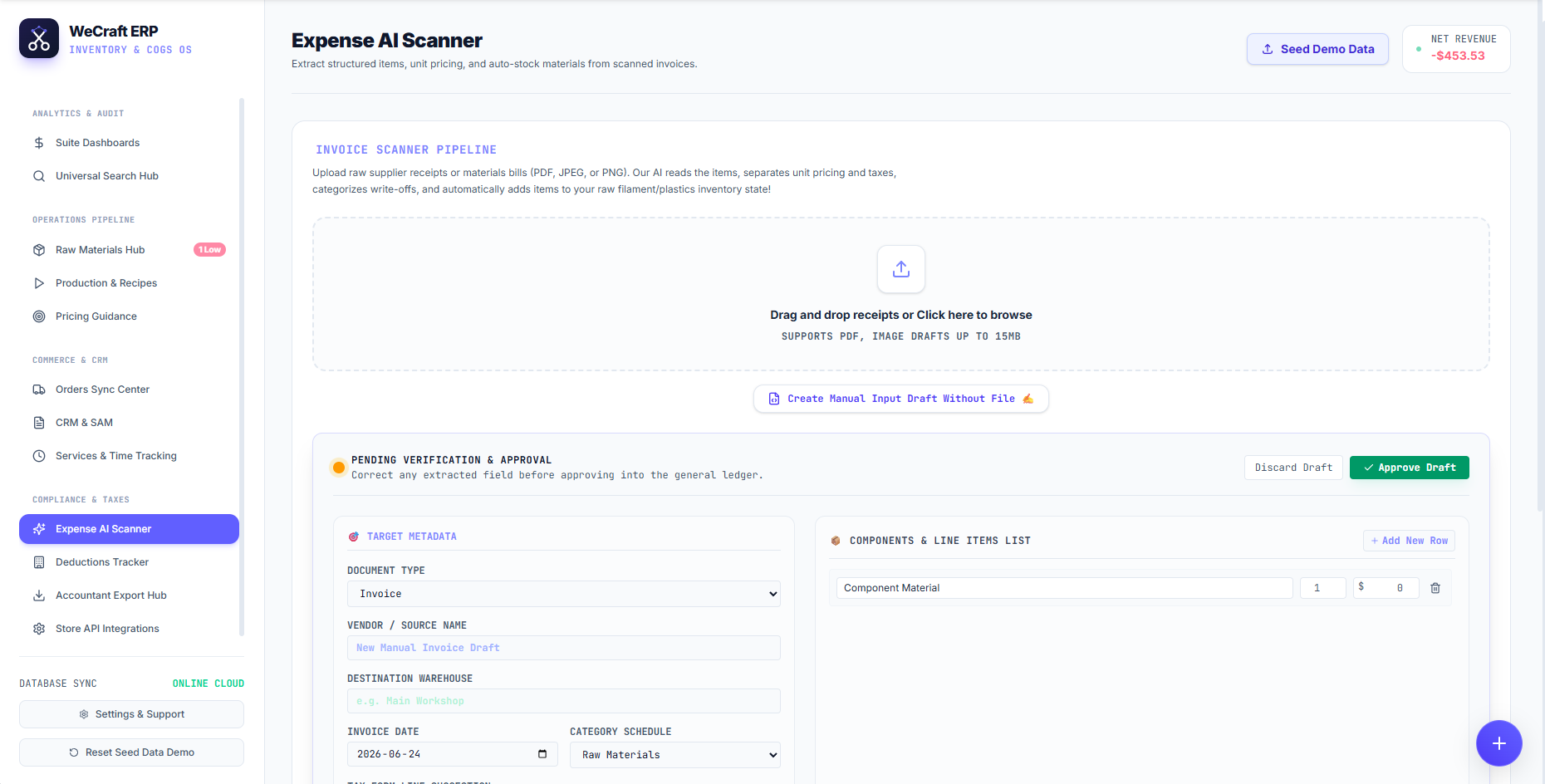
Pending Verification & Approval
Because accuracy is critical for your financial ledger and inventory counts, the AI does not silently ingest data. Instead, it creates a draft in the Pending Verification & Approval section.
Here, you can review and correct the extracted data before it hits your general ledger:
Target Metadata
Review the high-level details of the receipt:
- Document Type: Usually "Invoice" or "Receipt".
- Vendor / Source Name: The supplier you purchased from.
- Destination Warehouse: Where these physical materials are going (e.g., "Main Workshop").
- Invoice Date & Category Schedule: Ensure the expense is assigned to the correct tax category (e.g., "Raw Materials").
Components & Line Items List
On the right side, review the exact items the AI extracted. You can edit the names, quantities, and prices, or click + Add New Row if the scanner missed a smudged line on a physical receipt.
Once you verify the data is perfectly accurate, click the green Approve Draft button. Vercos will instantly log the expense into your ledger and add the physical materials to your Inventories & Warehouses! If you made a mistake, simply click Discard Draft.