Running out of a critical component mid-production is a costly mistake. Vercos ERP's Auto-Replenishment system acts as an autonomous purchasing assistant, constantly monitoring your stock levels and velocity to ensure you never hit zero.
Defining Safety Thresholds
To configure your rules, navigate to the Inventories & Warehouses and click the Auto-Replenish tab.
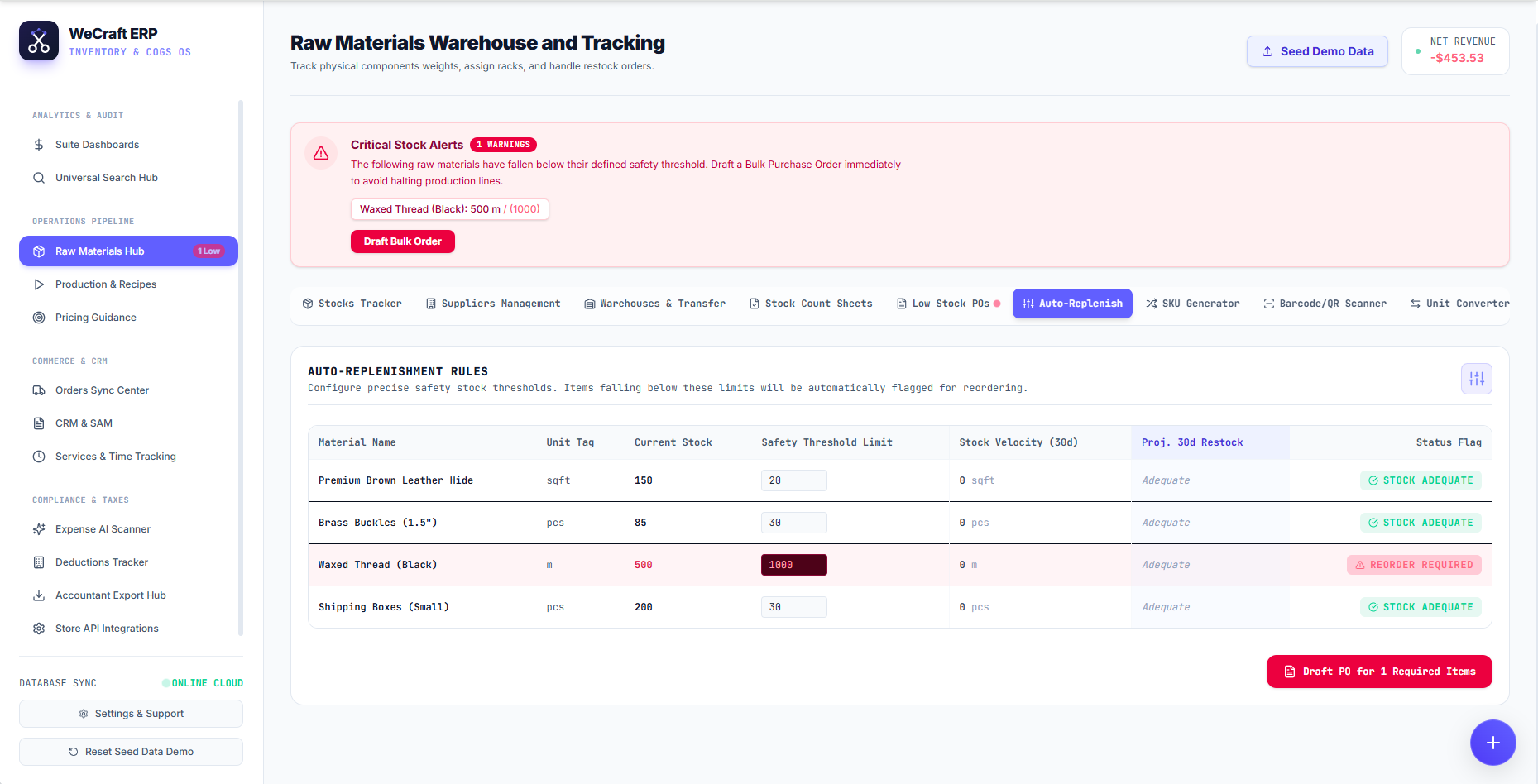
The core of the system is the Auto-Replenishment Rules table. Here you will see a master list of all your raw materials alongside their Current Stock levels and a Safety Threshold Limit input box.
The Safety Threshold Limit is your "red line." If your physical inventory drops below this number, the system will trigger a warning.
For example, if you set the threshold for Waxed Thread (Black) to 1000 meters, but your current stock drops to 500 meters, the system will instantly flag the row in red and mark the status as REORDER REQUIRED.
Predictive Velocity Tracking
Beyond simple static thresholds, Vercos also calculates your Stock Velocity (30d). By analyzing your production recipes and recent manufacturing batches, it determines exactly how fast you are burning through materials.
If your velocity suddenly spikes and the system projects you will run out before your next standard reorder cycle, the Proj. 30d Restock column will alert you to increase your purchasing volumes.
Generating Bulk POs
The magic of the Auto-Replenish system is that it ties directly into your Purchase Orders.
At the bottom of the rules table, you will see a red button like Draft PO for 1 Required Items. Clicking this button will automatically gather every single item flagged as "REORDER REQUIRED," bundle them by their assigned suppliers, and generate ready-to-send draft Purchase Orders in one click!