If you notice that your Shopify store says you have 10 items in stock, but Vercos ERP says you have 12, there is likely a sync issue. Here is how to diagnose and fix it.
1. Check the Integration Status
Go to Store API Integrations in the left sidebar. Ensure the Shopify connection has a green "Connected" badge. If it says "Authentication Failed", you may need to click Reconnect and log back into Shopify to refresh the secure token.
2. Verify SKU Mapping
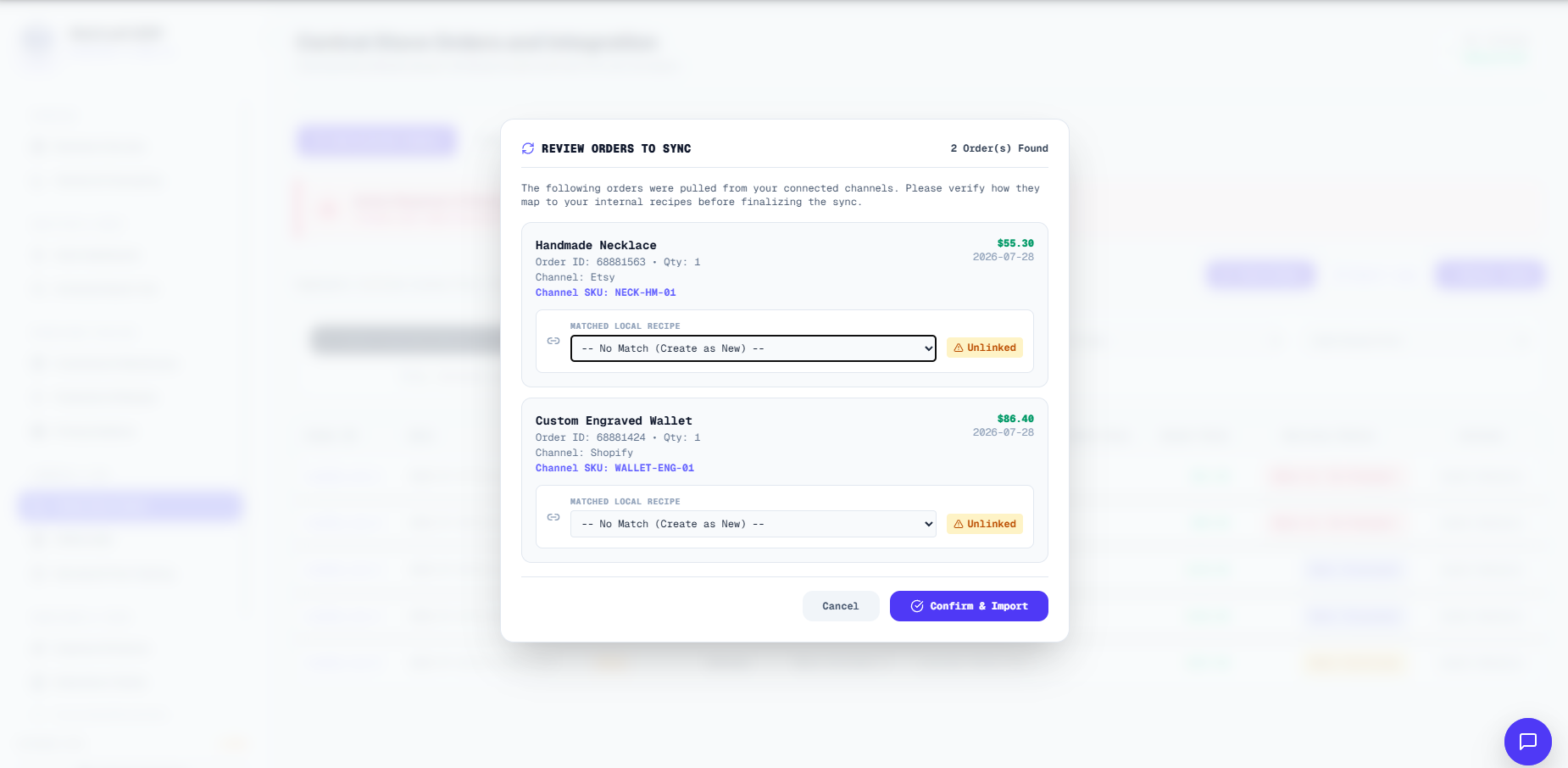
The most common cause of sync failures is unmatched SKUs. Vercos maps SKUs dynamically when fetching orders.
- Go to Orders and click Multi-Channel Sync.
- If Vercos detects new unmapped items from your sales channels, a Review Orders to Sync modal will appear.
- In this modal, manually select the correct internal recipe from the dropdown for each external item. Vercos will save this mapping for all future syncs.
3. Force a Manual Stock Sync
If the connection is good and SKUs are mapped, but numbers are still off, you can force an override.
- Go to the Orders page and click Multi-Channel Sync.
- Click Sync Stock Levels Now.
- Warning: This will overwrite the inventory numbers currently in your external channels with the numbers currently in Vercos. Vercos is always treated as the master ledger.