Before you start adding inventory, it is critical to configure your global workspace settings. These settings ensure that your costs, yields, and taxes are calculated correctly.
Accessing Settings
Click on the Settings gear icon in the bottom-left corner of your navigation sidebar.
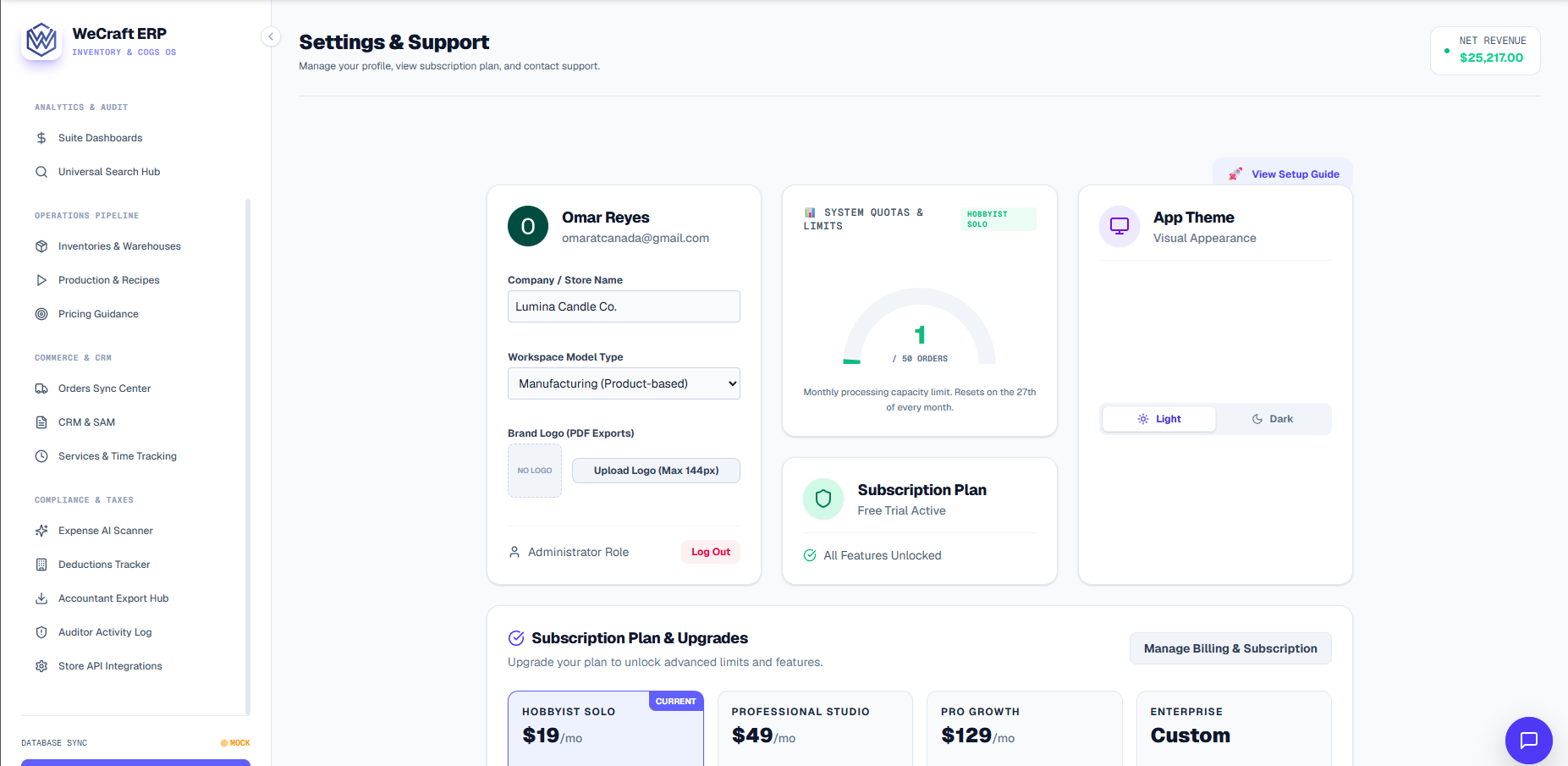
Core Configurations
1. Currency & Localization
Select your base currency (e.g., USD, EUR, GBP). All reports, COGS calculations, and dashboard metrics will automatically aggregate using this currency. If you integrate a Shopify store that uses a different currency, Vercos will apply a live conversion rate upon syncing.
2. Default Units of Measure (UOM)
Vercos ERP is highly flexible with units. You can configure defaults for:
- Weight: lbs, oz, kg, grams
- Volume: gallons, liters, fl oz, ml
- Length: yards, feet, meters, cm
Note: Even if you set your default weight to lbs, you can still create recipes that deduct exact grams—the system handles the conversions automatically.
3. Tax Rates
Input your local default tax rate. This will be applied to manual invoices generated through Vercos. If you use integrated sales channels, Vercos will respect the tax rates passed through the sync.
4. Inventory Costing Method
This is one of the most important settings in your workspace, because it decides how Vercos values every unit of stock you consume. Choose from:
- Weighted Average (WAC) — the default. Every restock blends into one running average cost per material, so
costPerUnitis always a single number. - FIFO (First-In, First-Out) — assumes the oldest stock on hand gets used or sold first. A restock at a new price is tracked as its own cost lot instead of being blended in, and your reported cost stays at the older rate until that lot is depleted.
- LIFO (Last-In, First-Out) — assumes the newest stock on hand gets used or sold first. A restock immediately becomes the cost quoted for your next consumption.
You picked one of these during onboarding, but you can change it any time from Settings → Inventory Costing Method. Changing it is not retroactive — it only affects material added or consumed after the switch, so treat a change like any other real accounting event, not a cosmetic toggle. Under FIFO/LIFO, any material with more than one active cost lot shows a View Cost Lots breakdown right on its Raw Materials Tracker row.
Once configured, hit Save Changes. You are now ready to invite your team or start adding inventory!